When Sweo encounters an issue connecting with Salesforce, the details appear in Error logs. This guide helps you quickly understand what each error means and how to fix it.
Each error entry includes:
Error code – a unique identifier for the error.
System error – the message returned by Salesforce.
Request path – The specific Salesforce API endpoint that triggered the error.
Request method – The HTTP method used (for example, GET, POST, or PATCH).
Status code – The HTTP response code returned by Salesforce (for example, 400 or 403).
Product feature – where the issue occurred (for example, Historical Conversations Import).
API type and Object type – technical details to help identify which Salesforce data object or endpoint is affected.
How to access the error logs
Go to Settings > Error logs.
Select any Salesforce-related error to open the Error details panel.
Tip: You can click Review setup to open the relevant Salesforce connection or permission settings directly from the error logs.
How to fix common integration errors
Errors with knowledge import
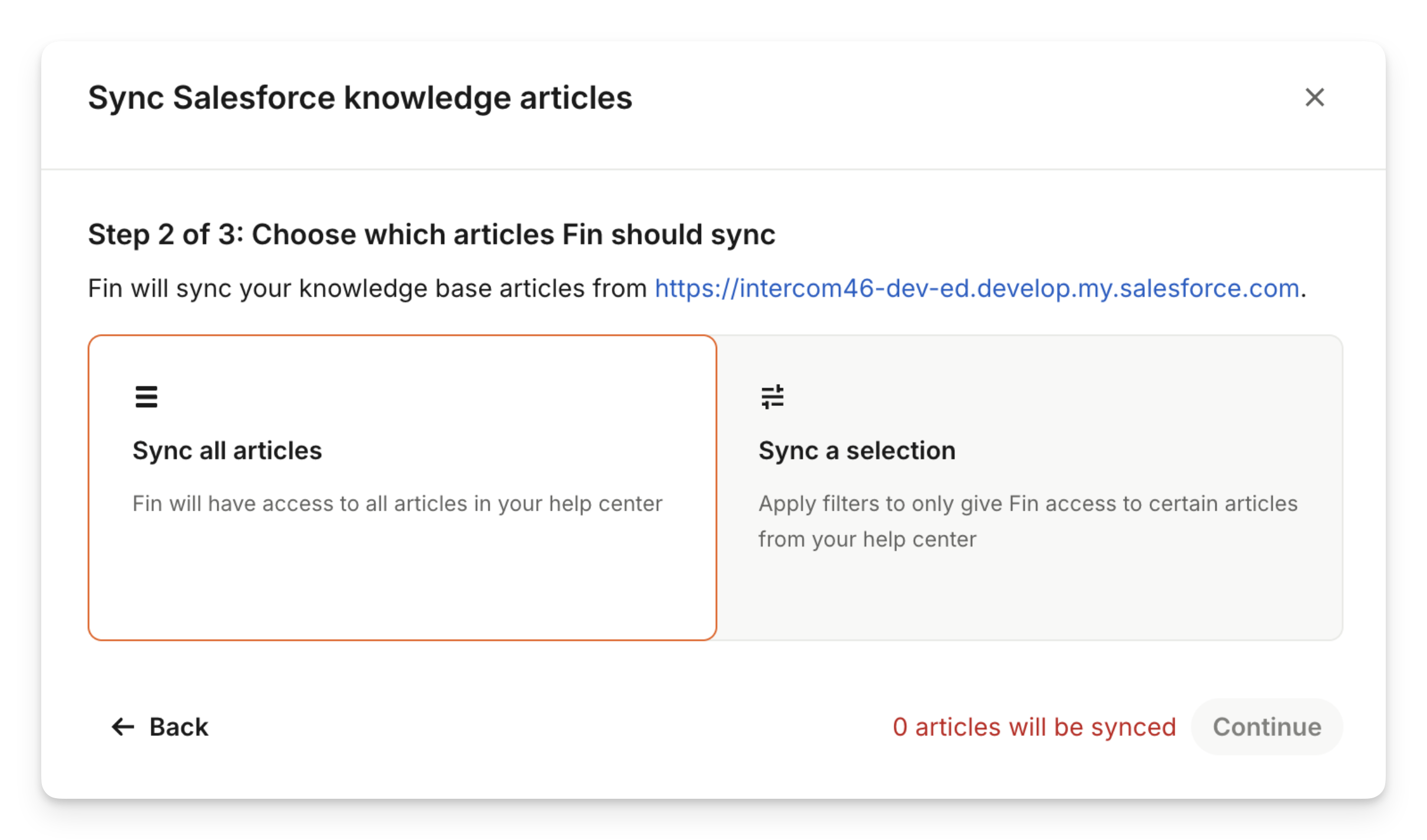
Object: Knowledge__kav
Error code: INVALID_QUERY_FILTER_OPERATOR
Message: Invalid filter in knowledge article query, most likely due to a data type mismatch.
How to fix this error:
Review your filters and try syncing your articles again.
If syncing was working before, the error may be caused by changes to Salesforce knowledge article fields. Check whether any fields used in your filters have been updated in Salesforce.
Object: Knowledge__kav
Error code: MALFORMED_QUERY
Message: Invalid filter values in knowledge article query.
How to fix this error:
Review your filters and try syncing your articles again.
If syncing was working before, the error may be caused by changes to Salesforce knowledge article fields. Check whether any fields used in your filters have been updated in Salesforce.
Object: Knowledge__kav
Error code: NOT_FOUND
Message: The requested knowledge article was not found.
How to fix this error: When triggering a knowledge import we gather a snapshot of articles that need to be synced over and then kick-off a sync. Between gathering and synchronizing the articles it appears that an article was deleted and no longer queryable. There's no further action to be taken apart from perhaps reinstating the deleted article.
Object: Knowledge__kav
Error code: INVALID_FIELD
Message: There were some issues with constructing the knowledge article query.
How to fix this error:
Check & update your filters and attempt syncing your selection of articles again.
If syncing was working before, the error may be caused by changes to Salesforce knowledge article fields. Check whether any updates have been made to the permissions or visibility of the fields used in your filters.
Object: Knowledge__kav
Error code: UNKNOWN
Message: There were some issues with constructing the knowledge article query.
How to fix this error: We currently only support importing Knowledge__kav objects as Salesforce articles. If your Salesforce Organization uses a different object, please contact our support team for assistance.
Errors with Salesforce Cases
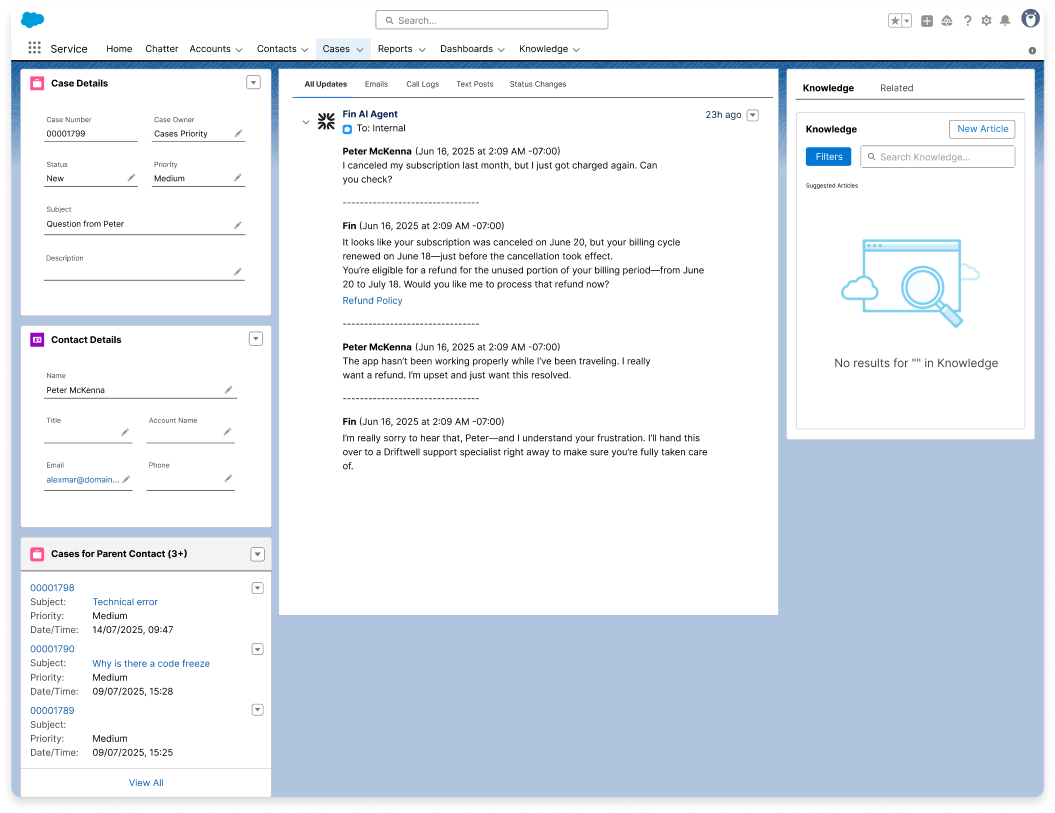
Object: Case
Error code: INVALID_FIELD_FOR_INSERT_UPDATE
Message: The integration user does not have permissions to update the audit fields on the object.
How to fix this error:
If the error is about Sweo not being able to set CreatedById or LastModifiedById:
Go to Salesforce Setup → User Interface.
Enable the permissions “Set Audit Fields upon Record Creation” and “Update Records with Inactive Owners”.
(Refer Enable the 'Create Audit Fields' Permission in Salesforce)
If the error is about any other field:
Share the error details with your Salesforce admin, or contact our support team for help.
Object: Case
Error code: FIELD_CUSTOM_VALIDATION_EXCEPTION
How to fix this error:
Do one of the following:
Check that the field causing the custom validation error is being set correctly in the workflow.
If you don’t want the workflow to set this field, configure a Salesforce Flow to set or default the field to the correct value.
Object: Case
Error code: CANNOT_EXECUTE_FLOW_TRIGGER
How to fix this error: A flow or process in your Salesforce organization is raising an error when Sweo updates or creates a Case.
Share the system error details with your Salesforce admin so they can resolve the issue in the Salesforce flow or process.
Object: Case
Error code: INVALID_OR_NULL_FOR_RESTRICTED_PICKLIST
How to fix this error:
Do one of the following:
Update the workflow to ensure the picklist field causing the restricted picklist error is set correctly.
If you don’t want the workflow to set this field, configure a Salesforce Flow to set or default the picklist field to the correct value.
Object: Case
Error code: UNABLE_TO_LOCK_ROW
How to fix this error: Sweo couldn’t update the Salesforce Case because another process was updating it at the same time. Some updates to the Case may not have been saved.
If Sweo is still assigned to the Case, the next update will automatically try again.
If Sweo is no longer assigned, you may need to manually copy any updates from the Sweo conversation into the Salesforce Case.
Object: EmailMessage
Error code: INSUFFICIENT_ACCESS_ON_CROSS_REFERENCE_ENTITY
How to fix this error: The Salesforce EmailMessage object references the Case via ParentId and a User via CreatedById and LastModifiedById. Ensure the Salesforce User who connected Sweo has permission to access both the Case and User objects.
If your Salesforce Organization uses Enhanced Email, Salesforce will also create Tasks from EmailMessage records. In this case, make sure the same user has permission to access Tasks, if the first step doesn’t resolve the issue.
Object: EmailMessage
Error code: UNABLE_TO_LOCK_ROW
How to fix this error: Sweo couldn’t create an EmailMessage for the Salesforce Case because another process was updating the Case at the same time.
If Sweo is still assigned to the Case, the next update will automatically create the EmailMessage and send the email again.
Object: EmailMessage
Error code: INVALID_FIELD_FOR_INSERT_UPDATE
How to fix this error: If the error is about Sweo not being able to set CreatedById or LastModifiedById:
Go to Salesforce Setup → User Interface.
Enable the permissions “Set Audit Fields upon Record Creation” and “Update Records with Inactive Owners”.
(Refer Enable the 'Create Audit Fields' Permission in Salesforce)
If the error is about any other field:
Share the error details with your Salesforce admin, or contact our support team for help.
Object: FeedItem
Error code: UNKNOWN_EXCEPTION
Message: Context user does not have permission to create rich text in feed
How to fix this error: Sweo needs the ability to create case feed items with rich text.
Go to Salesforce Setup → Chatter Settings
Click Edit
Under Rich Text Posts enable “Allow users to compose rich text posts”
Hit Save.
If the error is about any other field:
Share the error details with your Salesforce admin, or contact our support team for help.
Errors with Sweo Messenger
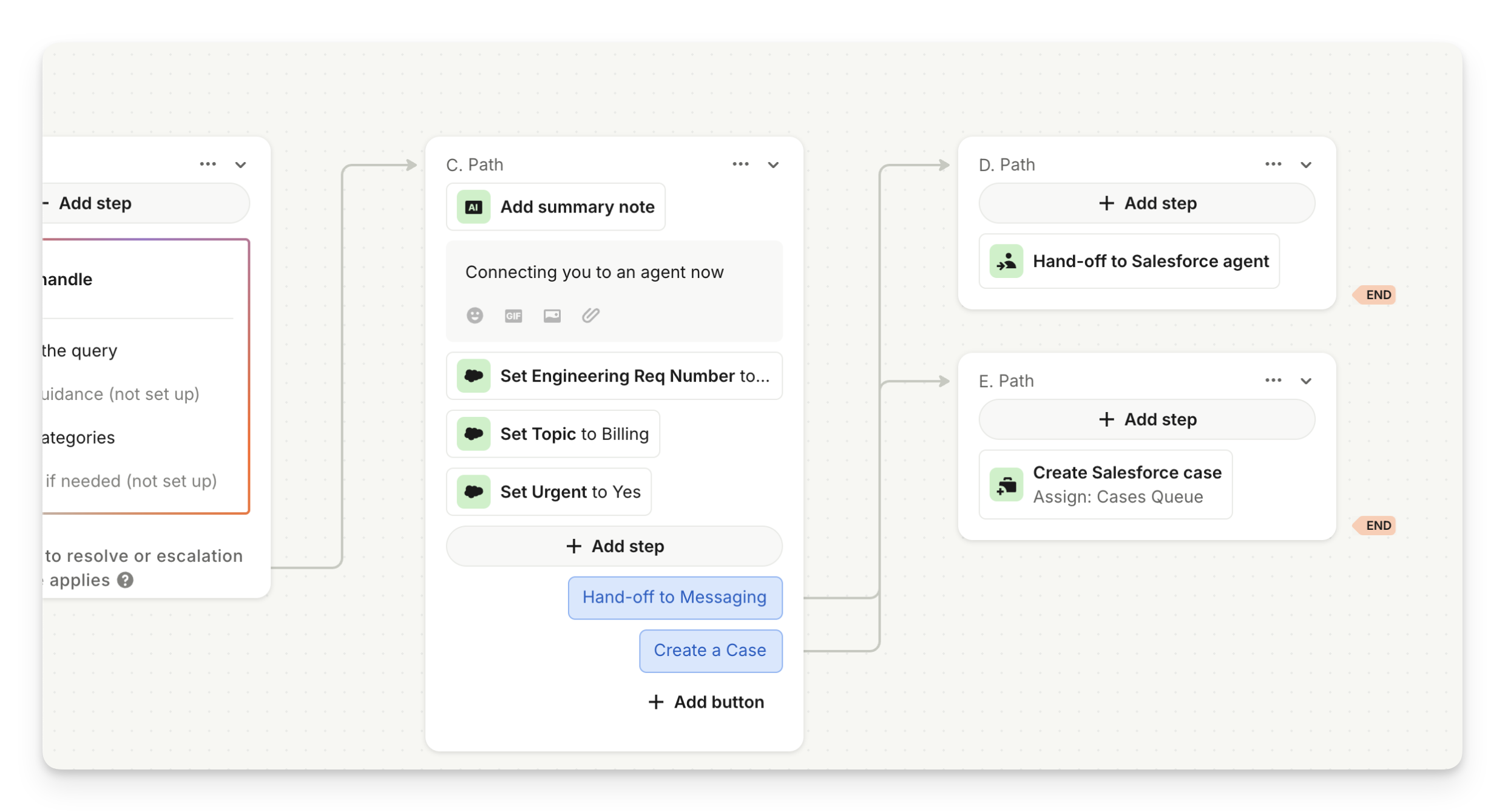
Object: Case
Error code: INVALID_OR_NULL_FOR_RESTRICTED_PICKLIST
Message: Bad value selected for restricted picklist field.
How to fix this error:
Do one of the following:
Update the workflow to ensure the picklist field causing the restricted picklist error is set correctly.
If you don’t want the workflow to set this field, configure a Salesforce Flow to set or default the picklist field to the correct value.
Object: Case
Error code: CANNOT_INSERT_UPDATE_ACTIVATE_ENTITY
How to fix this error: Sweo can't create a Case during the Create Salesforce Case step in the Sweo messenger workflow. Make sure the Salesforce user who connected Sweo to Salesforce has permission to access the Case object.
Object: Case
Error code: FIELD_CUSTOM_VALIDATION_EXCEPTION
Message: Bad value selected for restricted picklist field.
How to fix this error:
Do one of the following:
Update the workflow to ensure the field causing the validation error is set correctly.
If you don’t want the workflow to set this field, configure a Salesforce Flow to set or default the field to the correct value.
Object: Case
Error code: REQUIRED_FIELD_MISSING
How to fix this error:
Do one of the following:
Update the workflow to ensure the field causing the validation error is set correctly.
If you don’t want the workflow to set this field, configure a Salesforce Flow to set or default the field to the correct value.
Note: If the field isn’t visible as a Set data step, go to Deploy > Sweo Messenger > Data and select the Case field in the Pull data from Salesforce section.
Object: Case
Error code: INVALID_FIELD_FOR_INSERT_UPDATE
How to fix this error: Sweo can’t set certain fields on the Salesforce Case object. Make sure the Salesforce user who connected Sweo has the correct permissions on the Case object.
If the problem continues, share the error details with your Salesforce admin or contact our support team for assistance.
Object: Case
Error code: INVALID_EMAIL_ADDRESS
How to fix this error: Sweo couldn’t create a Salesforce Case object. Please check that the email provided to Sweo is valid.
Object: Case
Error code: CANNOT_EXECUTE_FLOW_TRIGGER
How to fix this error: A flow or process in your Salesforce Organization is raising an error when Sweo updates or creates a Case. Share the system error details with your Salesforce admin so they can resolve the issue.
Object: FeedItem
Error code: UNKNOWN_EXCEPTION
Message: Context user does not have permission to create rich text in feed
How to fix this error: Sweo needs the ability to create case feed items with rich text.
Go to Salesforce Setup → Chatter Settings
Click Edit
Under Rich Text Posts enable “Allow users to compose rich text posts”
Hit Save.
If the error is about any other field:
Share the error details with your Salesforce admin, or contact our support team for help.
Errors with sync case history
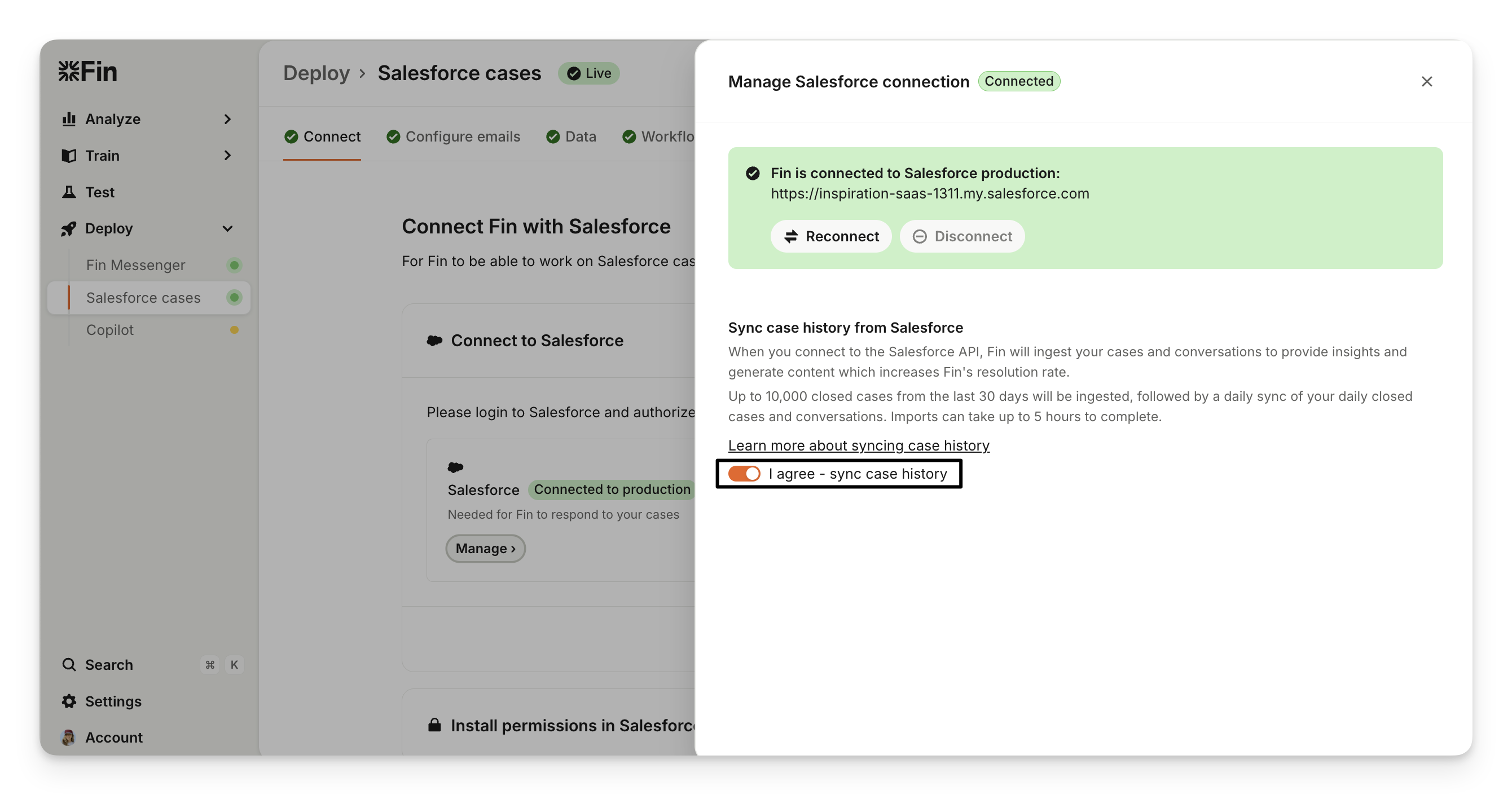
Object: Emails
Error code: INVALID_TYPE
Message: The integration user can not access the email messages attached to the case.
How to fix this error: Sweo cannot access the Emails relationship on the Salesforce Case object. This is most likely because Enhanced Email is not enabled in your Salesforce Organization.
To resolve this, do one of the following:
Go to Salesforce Setup → Enhanced Email and enable Enhanced Email.
Disable syncing conversation history. Go to Sweo Workspace → Settings → Salesforce integration and toggle off Sync case history from Salesforce.
We are actively working on supporting Salesforce organizations without Enhanced Email. Contact our support team for the latest updates.
Object: CaseFeed
Error code: INVALID_FIELD
Message: The workspace needs Digital Experiences to be enabled.
How to fix this error: Sweo can't query the Visibility field on the Salesforce CaseFeed object. Make sure the Salesforce user who connected Sweo has permission to access this field.
The Visibility field is only available when Digital Experiences is enabled in Salesforce. This field is required to determine whether a comment is internal or public. Refer Enable Digital Experiences in Salesforce to enable it.
If the issue persists once enabled, share the error details with your Salesforce admin or contact our support team.
Object: Case
Error code: INVALID_FIELD
How to fix this error: Sweo cannot query certain fields on the Salesforce Case object. Verify that the Salesforce user who connected Sweo has permission to access these fields.
If the issue continues, share the error details with your Salesforce admin or contact our support team.
FAQs
How do I know if an error is Salesforce-related?
Salesforce-related errors will show API type: Salesforce REST API in the error details.
Can I export Salesforce error logs?
Not yet — but you can click Copy all details in any error panel to copy the full log for reporting or sharing.
Where can I see resolved errors?
Resolved issues are automatically cleared from the Error logs view once Sweo successfully reconnects or retries the failed request.